How to...
Email for Staff and PhD Students: Setting up Outlook
This Guide is for staff and PhD students and illustrates how to set up Outlook 2010 on Windows 7 for use with the University's Microsoft Exchange system. A separate introduction to using Outlook for email can be found in our Guide to Using Outlook.
Contents
- Getting Started
- Setting up a Profile (Automatic method)
- What if the automatic method fails?
- Setting up a Profile (Manual method)
- Starting and using Outlook
- Common problems and their answers
- Setting up an Outlook profile to use SMTP for outgoing mail
GETTING STARTED
Before you can start using Outlook, you must have a Profile set up on your computer. You need to have a profile for every email account you want to access with Outlook by means of direct login. For information about accessing shared accounts such as role accounts, see our guide to role-based accounts.
If you're using the Windows 7 staff desktop, a profile should already exist for your personal email account, and you should be able to start Outlook and be connected to your email immediately.
If you're not using the Windows 7 staff desktop or you need to set up a profile for another account, follow the instructions below.
Two methods are given below: a reasonably quick and easy automatic method, and a slightly more complicated manual method, for use if the automatic method fails to work.
SETTING UP A PROFILE (AUTOMATIC METHOD)
This uses a process called autodiscovery, where Exchange automatically creates the correct settings for you.
Note that you must use these instructions on the computer on which you will be using Outlook.
- In Windows, click the Start button and choose Control Panel.
- On Windows XP computers, click on Mail from the list provided, then go to step 4.
On Windows 7 computers, if your Control Panel is displaying in Category mode, click on User Accounts and Family Safety:

- Click on Mail (32-bit):

- This starts the Mail Setup dialogue. Click on Show Profiles... to see your existing profiles:

- If you already have one or more profiles, these will be listed. If you want to recreate your profile, click on the existing one in the list and then click Remove.
To create a new profile, click on Add...:

- Enter a name for the new profile in the Profile Name box (our example below has Sussex Exchange as the profile name, but you can choose any name you like to suit the account), then click OK:

- Now you need to enter the email account details. If you are logged in on a Windows 7 desktop with your own account, you should find that the Your Name and E-Mail Address boxes have already been filled automatically, as shown below (note also that you don't have to enter your password):

If you want to create a profile for another account besides your own, click in the E-Mail Address box as if to change the address, then you will find the boxes will change - in which case proceed to step 8.
- Otherwise, in the boxes provided, enter your real name (or the name associated with the required account) and your official Sussex email address or that of the required account (ending with @sussex.ac.uk). Then enter your password (or that of the required account) twice as shown below. Then click Next:

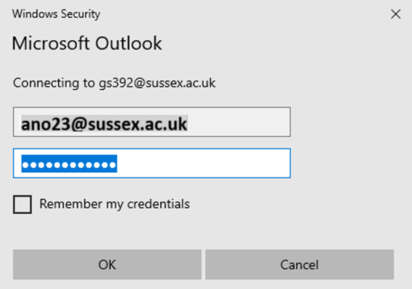
- A few seconds will elapse while the Exchange server is contacted and the details checked. If you are asked to authenticate with a username and password, choose Use other account and enter the required username in the form ad_us\ano23 (replacing ano23 with your own username or that of the required account) and password as normal (you might have to do this twice).
When your account is successfully configured, you need to make one more change. Click on the Manually configure server settings box, then click Next

- Click to de-select Use Cached Exchange Mode, then click Finish.
Disabling Cached Exchange Mode will prevent Outlook from downloading copies of all your email headers to your computer, which, if you have a lot of email, can take a very long time. It's also important to disable Cached Exchange Mode if you wish to use Outlook on more than one computer, otherwise different information will be cached on different computers:

- Your new profile will now be listed. If you only have the one profile, you can click on Always use this profile so that it will be used every time you use Outlook. If you have more than one profile, we recommend you click on Prompt for a profile to be used so that you can choose a profile, and hence an account, from the list each time you start Outlook:

- Now click OK and then Close to close the Mail Setup dialogue.
You should now be able to start Outlook and login to your account.
If you're asked for a username and password, choose Use other account and enter your username in the format ad_us\ano23 (replacing ano23 with your username) and your normal password.
What if the automatic method fails?
If the autodiscovery mechanism used by the above method fails to work, you can set up a profile using a manual method as described below.
SETTING UP A PROFILE (MANUAL METHOD)
This method is the same with Windows 7 and Windows XP.
Note that you must use these instructions on the computer on which you will be using Outlook.
- In Windows, click the Start button and choose Control Panel.
- If your Control Panel is displaying in Category mode, click on User Accounts.
- Click on Mail or Mail (32-bit) depending on which one is shown.
- This starts the Mail Setup dialogue. Click on Show Profiles... to see your existing profiles:

- If you already have one or more profiles, these will be listed. If you want to recreate your profile, click on the existing one in the list and then click Remove.
To create a new profile, click on Add...

- Enter a name for the new profile in the Profile Name box, then click OK:

- Click the Manually Configure Server Settings box and then click Next:

- Click on the option button for Microsoft Exchange and then click Next:

- In the box for Microsoft Exchange server, enter ex-cas1.ad.susx.ac.uk
- We recommend un-ticking the Use Cached Exchange Mode box.
- In the User Name box, remove your own name if it is shown, then enter the username (login name) for the required account (for example, ano23):

- Click the More Settings box:

- If a warning box (saying "Outlook cannot log on") appears, just click OK, and again in the following dialogue box.
- In the Microsoft Exchange dialogue box, click the Connection tab:

- Under the Outlook Anywhere section, click the Connect to Microsoft Exchange using HTTP box, then click the Exchange Proxy Settings button:

- In the Use this URL to connect... box, type exchange.sussex.ac.uk
- Click to select the Only connect to proxy servers... box.
- In the box underneath the Only connect... option, type msstd:exchange.sussex.ac.uk as shown below:

- Click OK, then click OK again.
- Click the Check Name button where you see your username:

- If a login box appears, type ad_us\ followed by the account's username, for example ad_us\ac47, then enter your password, then click OK.
- If you see the message "Microsoft Outlook does not recognize:" and your username, scroll through the list of names shown, and click on your name.
- Click OK.
You should now see the account's username underlined and showing its friendly email address (for example A.N.Other@sussex.ac.uk).
- Click Next.
- Click Finish.
STARTING and USING OUTLOOK
For an introduction to using Outlook for email, please see the separate Guide to Using Outlook.
COMMON PROBLEMS AND THEIR ANSWERS
Please browse our local collection of questions and answers about Outlook in the Outlook FAQs.
SETTING UP AN OUTLOOK PROFILE TO USE SMTP FOR OUTGOING MAIL
This method of use provides a means for using Outlook with an alternative server for outgoing email.
An advantage is that it allows the system to determine whether you are on campus when you send your email, and can help resolve some problems such as rate-limiting. This is because Exchange cannot normally detect whether or not you are sending email from a computer directly connected to the university's network.
A disadvantage of using Outlook in this way is that only the email service is accessible: the other standard Exchange facilities such as your Calendar and Contacts will not be available. Because of these limitations, we do not recommend using Outlook in this way, but the means of doing so is given below for those who wish to try it.
- Click the Windows Start button and select Control Panel.
- Select Mail or Mail (32-bit) from the list of items.
- Click the Show Profiles... button.
Click the Add... button, then enter a name for the new profile in the Profile Name box, then click OK. We recommend the name Exchange SMTP so as to distinguish it clearly:

- In the Auto Account Setup window, click the option to Manually configure server settings:

- In the Choose Service window, select Internet E-Mail:

- In the Internet E-mail Settings window, enter your real name and email address in the Your Name and Email Address boxes.
In the Account Type box, select IMAP.
In the Incoming mail server box, enter imap.exchange.sussex.ac.uk.
In the Outgoing mail server (SMTP) box, enter smtp.sussex.ac.uk.
In the User Name box, enter your username (login name), such as ano23.
Finally in this window, click the More Settings... button:

- In the General tab, enter the name Exchange SMTP in the box for "the name by which you want to refer to this account".
In the Outgoing Server tab, click to select the box labelled My outgoing server (SMTP) requires authentication.
Click to select the option Use same settings as my incoming mail server:

- In the Connection tab, click to select the Connect using my local area network (LAN) option.
Important: make the following changes in the order shown:
Under the Advanced tab:
1: Enter the number 993 in the Incoming Server (IMAP) box.
2 & 3: Select SSL in both Use the following type of encrypted connection boxes.
4: Enter the number 465 in the Outgoing server (SMTP) box.
Important: If you do not make these settings in the order shown above, the port settings may not be correctly recorded and you may have to set them again.
Then click OK:

- You will now be asked to enter your username and password, for testing the connection to the account for this profile and to send a test message. A Test Account Settings window should then appear, hopefully showing a successful test:

- Click the Close button on the test window. You should be shown a message to say 'Congratulations', which means that the new profile has been created. Click the Finish button to exit the wizard:

- Now you should see a list of your profiles, including the new one just created.
Click to select the Prompt for a profile to be used option. This will ensure that every time you start Outlook, you will be asked which profile to use.
Finally...
When you first use Outlook with an IMAP/SMTP profile, you need to configure it to show all your folders:
- Start Outlook and choose the Exchange SMTP profile you created earlier.
- Enter your username and password to login.
- When Outlook is showing your mailbox, right-click on the Exchange SMTP account name, then click on IMAP Folders... in the drop-down menu:

- Click to deselect the box labelled When displaying hierarchy in Outlook, show only subscribed folders, then click Apply, then click OK:

This should cause all your folders to be listed.
created on 2011-01-11 by David Guest
last updated on 2013-05-14 by Andy Clews