

How to...
Zoom: Transfer meeting ownership to another user
Microsoft Teams is the University’s single platform for online meeting and collaboration (exceptions apply)- You can find out more about this change on our webpage
How to transfer an existing meeting to another user.
This requires two parts.
Firstly
The person that you are wanting to transfer the meeting to needs to the following.
- Sign into Zoom via the web browser. If needed the steps to sign in are below:
- Go to: https://universityofsussex.zoom.us/
- Click the 'Sign in' button at the bottom of the screen.
- Enter your Sussex username@sussex.ac.uk (e.g. ano123@sussex.ac.uk) and click ‘Next’.
- Enter your Sussex password – the same one you use to login. Click ‘Sign in’.
- Click yes to stay signed in. Optional: Click ‘Don’t show this again’.
- You are logged into your Zoom account.
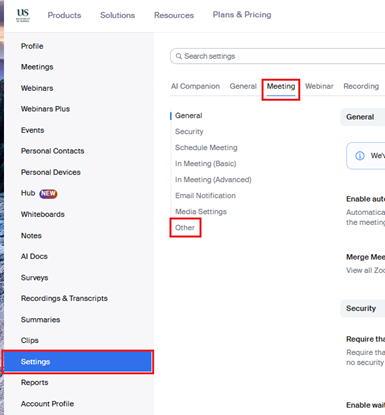
- Select the Settings tab on the left hand side menu, select the Meeting tab on the top ribbon and then select the Other option on the menu
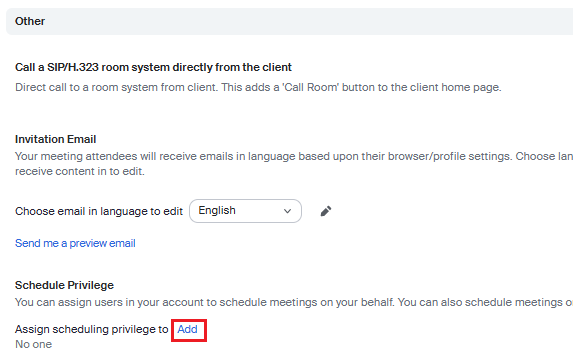
- Then in the Other settings, where it states “Assign scheduling privilege to” select add. The person that wants to have the meetings transferred over to them needs to add the transferee there.
Secondly
Now the transferee has permission to manage meetings for the person they’re transferring the meetings to the can do the following.
- Sign into Zoom via the web browser. If needed the steps to sign in are below:
- Go to: https://universityofsussex.zoom.us/
- Click the 'Sign in' button at the bottom of the screen.
- Enter your Sussex username@sussex.ac.uk (e.g. ano123@sussex.ac.uk) and click ‘Next’.
- Enter your Sussex password – the same one you use to login. Click ‘Sign in’.
- Click yes to stay signed in. Optional: Click ‘Don’t show this again’.
- You are logged into your Zoom account.
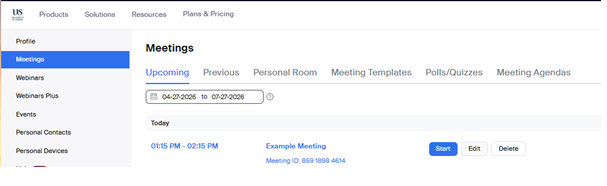
- Select the Meetings Tab and then select the Edit option on the meeting you want to transfer
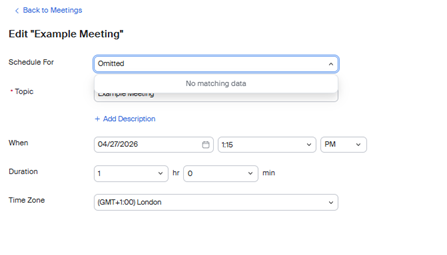
- And now you can see the Scheduled For drop down. If you select that and change the owner, select Save, the meeting will be transferred to its new owner
- Select the Meetings Tab and then select the Edit option on the meeting you want to transfer
3. And now you can see the Scheduled For drop down. If you select that and change the owner, select Save, the meeting will be transferred to its new owner
created on 2026-04-27 by Michael Taylor
last updated on 2026-08-18 by Benoit Sharp