

How to...
Microsoft Copilot Chat
Available to all staff and Students, Microsoft Copilot Chat is a data-secure AI powered chat service.
Data-Secure
Microsoft Copilot Chat provided via the University keeps your data safe. We strongly advise against using other services like ChatGPT as they do not keep your data secure.
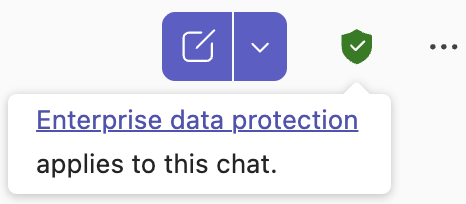
When signed in with your Sussex credentials you should always see the green 'data-secure' shield in the top-right corner.
Licences
Co-Pilot Chat is available as part of the M365 suite of applications. It offers a lightweight range of features.
Micorosoft offer additional Co-Pilot licences at extra cost per user/per month, which includes Co-Pilot studio which provides enhanced processing features embedded into office applications and connections to other data sources and ability to create automated processes. However, the University at this stage is not able to provide additional licences until security and compliance measures are in place to support this.
Co-Pilot Chat Features
Copilot Chat is an AI powered assistant that helps you work more efficiently using natural language helping you save time. With Copilot Chat, you can:
- Get quick answers to work related questions
- Summarise information such as emails, meetings, documents, or long pieces of text
- Create and refine content like emails, presentations, documents, or lists
- Generate ideas and help with problem solving or planning
- Explain things clearly, including technical or unfamiliar topics
- Help complete tasks faster by turning prompts into drafts, actions, or insights
NB. Copilot only remembers information within your current chat and does not retain your history or preferences once the current session ends.
Access
The Copilot Chat can be accessed in the following ways:
- Online at: https://copilot.microsoft.com
- M365 Desktop Application
- or via MS Teams and Outlook
Ensure you have signed in using your Sussex credentials - e.g. ano123@sussex.ac.uk
Suggestions For Using Co-Pilot Chat
- Producing Meeting Notes and Actions:
Even though you cant use Copilot directly in Teams or Zoom, you can use Copilot Chat to create summaries of transcriptions to create meeting notes and action points!
Step 1: Start the transcription
a. In Teams - Click 'More ...' then 'Record and Transcribe' and 'Start Transcription'
b. In Zoom - Click 'More...' then 'Transcript'.
Step 2: At the end of the meeting copy and paste the entire transcription text into a Word document.
Step 3: Upload the document into Co-Pilot Chat, and a prompt along the lines of 'Summarise this meeting transcription, including next steps'.
- Managing Emails
Help draft professional responses and summarise email threads.
- Writing Assistance
Draft reports, handbooks, PowerPoints, end user guidance. Generate summaries of long text or complicated documents. You can upload documents for review or Co-Pilot can generate a document from scratch depending on your instruction.
- Organising Research/Knowledge
Chat responses are automatically added to pages in your Loop Workspace for future reference . These can then be organised into Topic based Workspaces that you can also share with colleagues as required and incorporate with information from other sources.
- Quick IT guidance/skills/troubleshooting ideas
Co-Pilot can provide guidance on how to diagnose and fix technical problems, so great for self-help, before seeking further IT support. Also providing suggested technical solutions to problems or appropriate tools that could be used for specific tasks or outcomes.
- Generate a QR code
- Enter a prompt that describes the QR code you want, and send it.
- For example: "Create a QR code that points to https://support.microsoft.com/copilot-skilling"
- Copilot will generate a QR code based on the URL provided.
- Select the Copy or Download icon on the top right of the generated QR code image.
Tips
- Be specific with your prompts: The clearer your question or task, the better the response.
- Use natural language: You don’t need to use special commands—just ask like you would a person.
- Ask follow-up questions: You can build on previous answers to refine or expand the conversation.
- Ask Copilot itself for tips on how to use it!
Co-Pilot Chat Agents
Agent creation in Co-Pilot Chat is available in a more limited, lightweight form compared to using the full Co-Pilot licence. While useful for basic scenarios, there are important constraints to be aware of:
- Limited Data Access- Any responses are based mainly on public information or content you manually provide
- No Access to Co-Pilot Studio
- No Advanced Microsoft 365 Context- Agents do not have ongoing awareness of your meetings, tasks, calendar, or documents.
- Fewer Customisation and Control Options- You cannot create more advanced role based or task specific agents designed for ongoing operational use.
- No automation or Action Taking- Agents are informational only.
- Reduced Reusability and Persistence- Agents may not retain long term memory or context across sessions. You may need to re provide instructions or context frequently.
- Not Suitable for Business Critical Scenarios- Without a full licence, agents are best suited for personal productivity, general guidance, or idea generation.
- Agents processing high quantities of actions/processes may require purchasing additional AI credits from Microsoft.
Further Support
created on 2025-11-18 by Benoit Sharp
last updated on 2026-07-21 by Benoit Sharp