

How to...
Connect to wi-fi (eduroam) with Windows 8
The wi-fi network at Sussex is called eduroam. It's available in the Library and all of the teaching buildings on the campus as well as most of the residences.
- Make sure you know your IT username and password (confirmed when you registered) and check the date and time are set correctly, your wi-fi is turned on and that your computer is not connected to a network cable
Swipe or move your cursor to the bottom right corner to reveal the charms and click on the Settings charm, and then the network icon. Click on sussex.ac.uk-wifi-setup and then click Connect (leave the box for Connect automatically unticked).
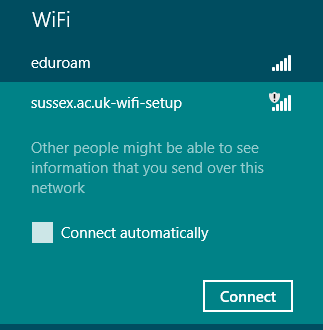
Open a web browser (such as Internet Explorer) and you should be redirected to a Sussex web page with two buttons. Click on the button for member of the University.

Login with your username and password (and accept the terms and conditions for the University network the first time you login).
Click the button to Register a computer.

Complete the details for your device and click register.
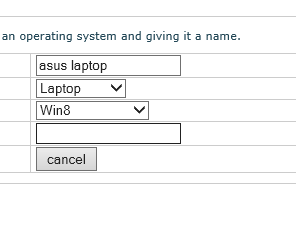
Click Register again to log your computer's unique address.

This should be filled in automatically so choose Wireless and click Register.

You only have to complete the previous steps the first time you connect. Once your computer's address has been registered, you just have to connect to eduroam with your IT username and password.
Swipe or move your mouse cursor to the bottom right corner of the screen to reveal the charms, click on the Settings charm and then the network icon. Click on eduroam, tick the box to Connect automatically and then click Connect.

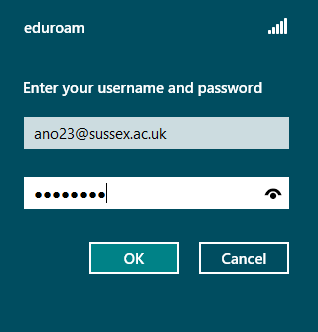
Enter your IT username followed by @sussex.ac.uk (so if your username is ano23, you would enter ano23@sussex.ac.uk) and your normal password and click OK.
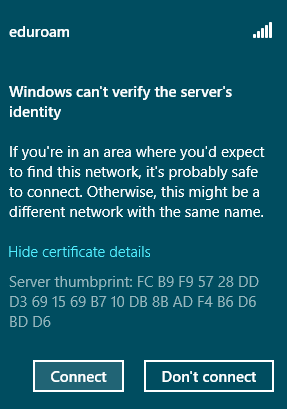
You will then be asked to accept the University's security certificate. You can check it is the right one by clicking on More details and making sure that the thumbprint is: FC B9 F9 57 28 DD D3 69 15 69 B7 10 DB 8B AD F4 B6 D6 BD D6. Click on Connect.
You should now be connected to the internet although occasionally, you might have to try the process more than once in order to connect.

Make sure you're protected from viruses before you connect to the wi-fi network.

You should only have to follow this process the first time you connect to eduroam. After that, your device should connect whenever it is in range, as long as the wi-fi is turned on.

Don't worry if you have problems connecting - see the troubleshooting guide or come along to IT Services in Shawcross with you laptop and power supply and we'll help you get online.
created on 2013-01-22 by David Guest
last updated on 2013-01-22 by David Guest