
Printing in student computer rooms and in the library
There are Multi-Function Devices (MFDs) located in all the student computer rooms and in the library. These devices can print, scan and photocopy.
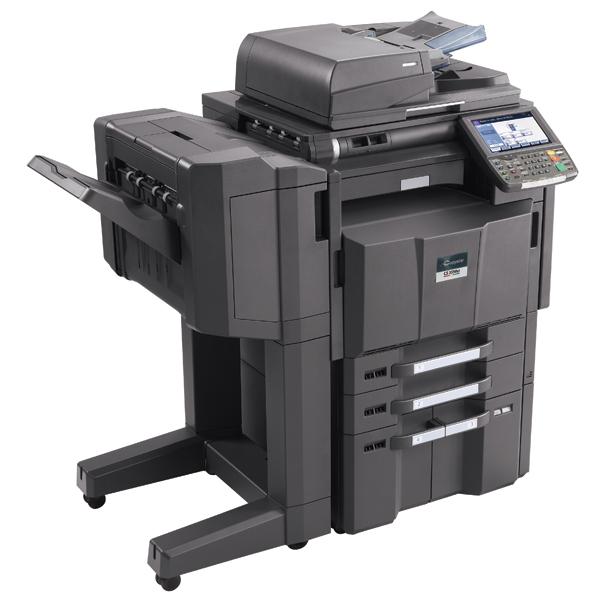
You can print from any Sussex computer or from your own device.
When you're printing from a Sussex computer, use the printer called UoS_Secure_Print
On this page:
Your Printing ID Number (PIN)
To print, scan or photocopy you will need to know your Printing ID Number (PIN).
You will have received this PIN by email. If you need to check it, log in to Cloudprint using your normal Sussex username and password.
Once you've logged in, click the [show] button under Card/ID to reveal your PIN.
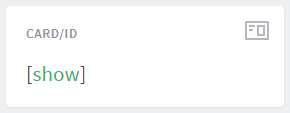
You cannot change your PIN.
How to print
- Go the Print window in your application as normal. Use the printer called UoS_Secure_Print. This is the default printer on student computers.
When you send your document to print, it'll be held in the cloud. Your document will be held for 14 hours, or until you release it by visiting an MFD. If you haven't collected your printing within 14 hours, your job will be deleted from the queue. - Go to any student MFD on campus.
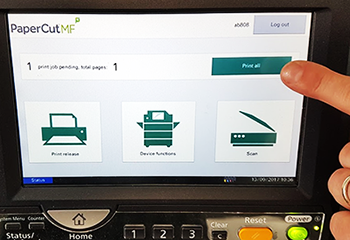
- Log in to the MFD using your printing PIN code.
- Press Print All. If you've sent several documents to UoS_Secure_Print, this will print them all.
If you want to select one, or to cancel your print jobs, go to Print Release and select one of your items.

Setting print options
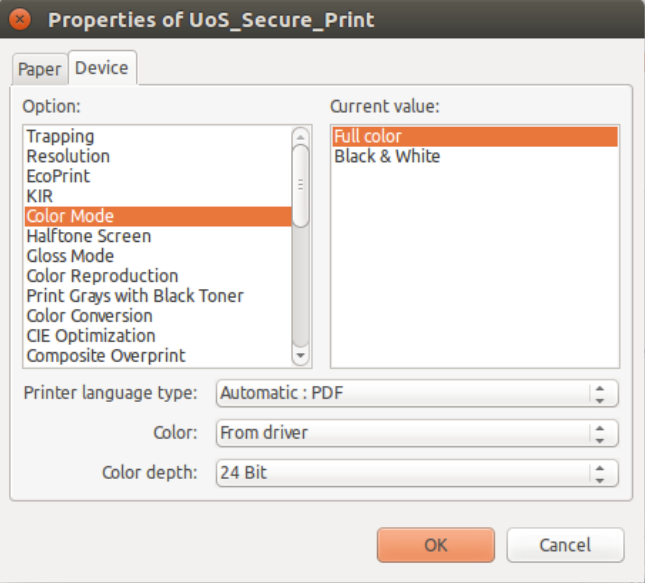
You can set print options like colour or single-sided printing (default is double-sided), or set the MFD to staple your document. These settings will reset each time you close your application, so please check your printer properties carefully.
The default settings are Black and White, A4, single-sided.
- If you're using a Windows computer, look for a button called Printer Properties when you go to print. You will see this window:
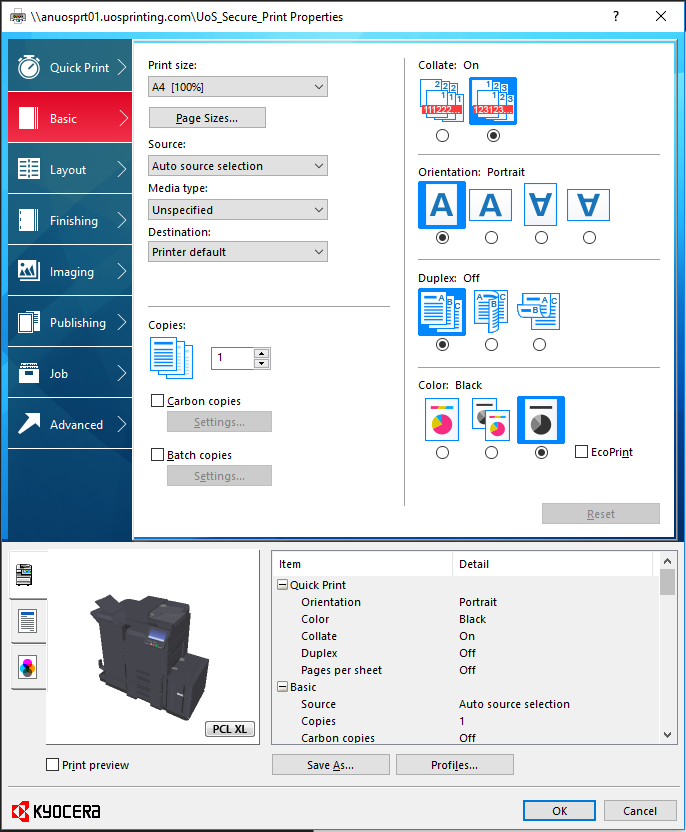
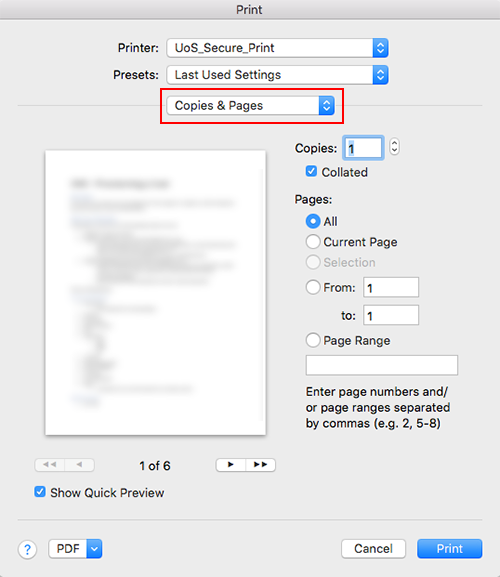
- If you're on a Mac, select Print and then look for a drop-down menu called Copies and Pages. You'll find the settings you need here.
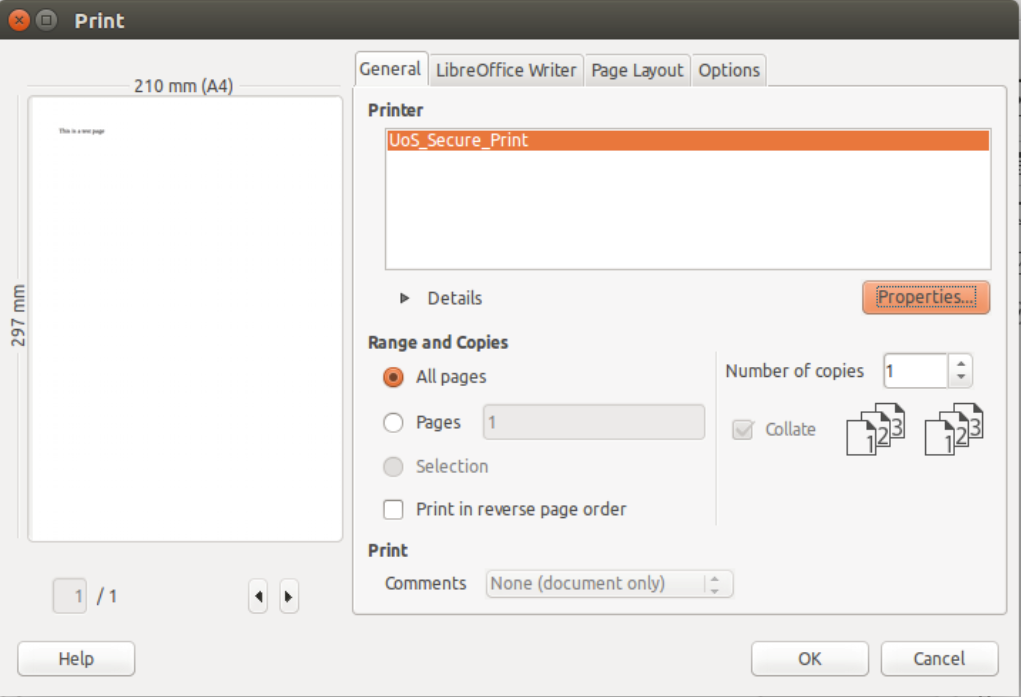
- If you're using a Linux computer, you'll find most print settings by clicking on the Properties button in the Print window:



Printing and photocopying costs
As a student at Sussex, you have a printing account. Every sheet you print is charged to your account.
Price list
| Type | Size | Single sided | Double sided |
|---|---|---|---|
| Black & white | A4 | 5p | 8p |
| Colour | A4 | 20p | 36p |
| Black & white | A3 | 30p | 54p |
| Colour | A3 | 40p | 72p |
Your printing account
To use any of the printers you must have credit in your printing account so you should keep an eye on your credit and remember to top it up regularly.
To check your credit, log in to the Cloudprint system.
From Cloudprint, you can also check your Printing ID Number and look at your printing history.
You can use Sussex Direct to add credit to your account using a debit or credit card (minimum of £1).
Printing from your own device
Web Printing
If you want to print a document from your own device, the easiest way is to use Cloudprint. This involves uploading your document to Cloudprint and sending it to print, and then visiting an MFD to log in and collect your document.
Please note that advanced printing options are not available through Cloudprint. You only have basic options. If you would like the full range of options, please log in to a student computer.
To use Cloudprint:
- Log in to Cloudprint with your usual Sussex username and password
- Select Web Print from the menu on the left.
- Click Submit a Job.
- Tick a button beside the print option you require (colour or B&W, simplex (single sided) or duplex (double sided)) and then click Print Options and Account Selection.
- Enter the number of copies you require, then click Upload Documents.
- Click Upload from computer and select the file(s) you would like to print. Please note that the types of file you can print via Web Print are listed below this box. Then click Upload & Complete.
- Collect your printing from any student MFD, logging in with your Printing ID Number.
Scanning and Photopying
Scanning on an MFD
- Log in to an MFD using your PIN.
- Where possible, use the document feeder on the top of the MFD. Otherwise, lift the lid and place your document face-down on the glass.
- Press the Scan button and then Scan to my email.
- If you need special settings, such as a different size or a higher resolution, press the settings button.
- Press the scan button. The MFD will scan your document and email the file to your Sussex email account.
- Log out when you've finished.
Photocopying on an MFD
- Log in to an MFD using your PIN.
- Where possible, use the document feeder on the top of the MFD. Otherwise, lift the lid and place your document face-down on the glass.
- Press the Device functions button.
- Use the buttons on this screen to select the options you want.
- Use the physical buttons on the MFD to select the number of copies you want.
- To begin copying, press the green button.
- Log out when you've finished.
Updated on 27 April 2021